An alarm
you can't
snooze.
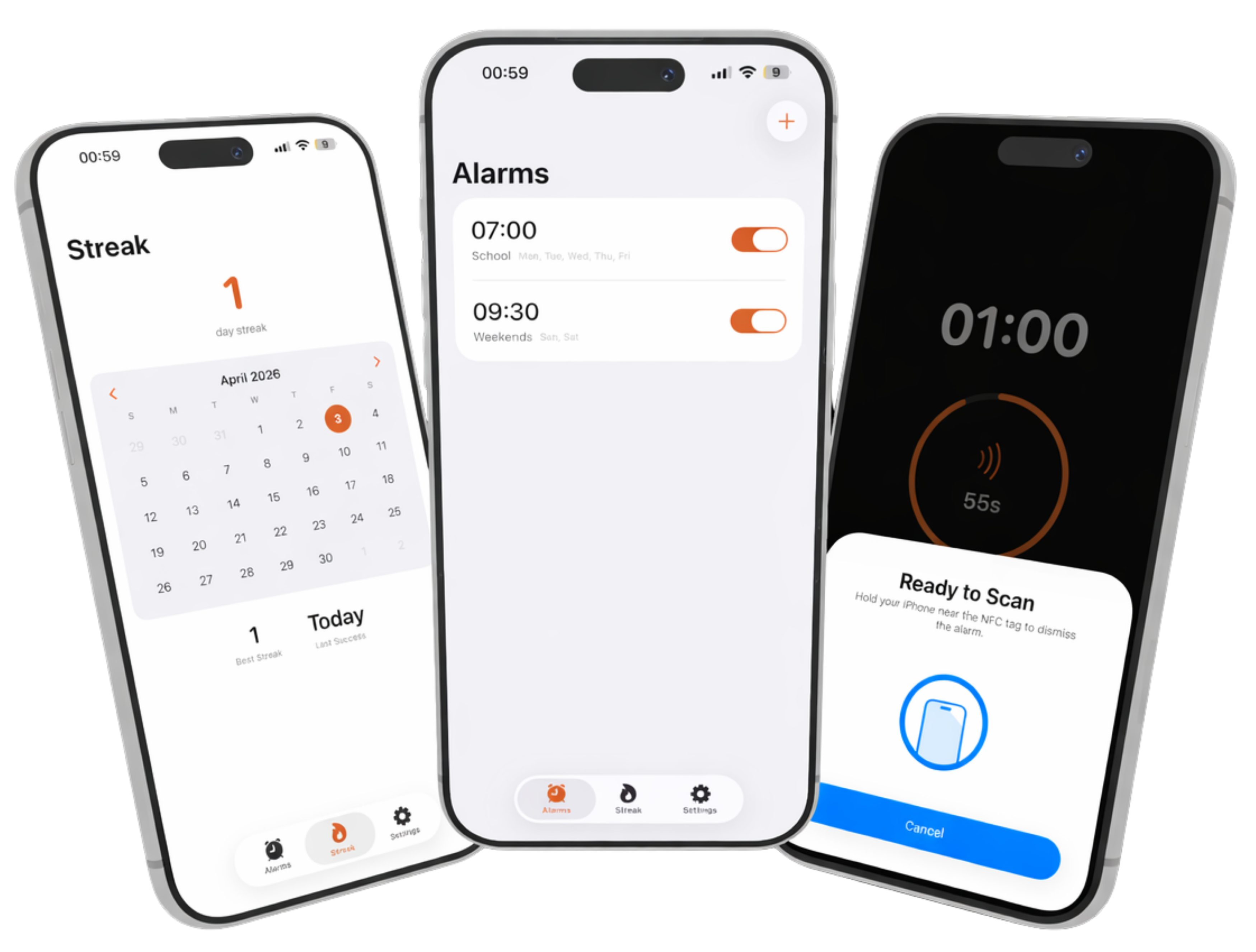
Wake Awake makes your morning physical. To silence it, you must scan your NFC tag — forcing you out of bed with zero excuses.
Join the waitlist — it's free
How it works
Three steps. No excuses.
Schedule your wake-up
Set your alarm time and choose which days. Simple, clean — no bloat.
Place it far from bed
Stick the tag somewhere that forces you up — bathroom door, desk, kitchen.
Scan to stop
Walk to the tag, scan it, and you're up. No scan, no silence. No exceptions.
Emergency Override
Built tough. Not cruel.
Stuck? We thought
of that.
Wake Awake is designed to be hard to dismiss — but never impossible. If you genuinely can't reach your NFC tag, an emergency override exists.
It takes real effort to trigger: the alarm must complete three full countdowns without being scanned. Only then does the override option appear.
And it's not a free pass — you'll be asked to solve a simple math problem to confirm you're actually awake and alert before the alarm stops.
Three countdowns pass
The alarm repeats three full cycles without an NFC scan before the override becomes available.
Enter your code
A one-time code is sent to your phone number or email. Enter it to unlock the emergency dismiss.
Alarm dismissed
Once verified, the alarm stops. Every override is logged so you stay accountable.
Early feedback
People who actually wake up now.
“I stopped snoozing on day one. The NFC tag makes it non-negotiable — there's no way to cheat the system.”
Alex M.
Designer, NYC
“First alarm that actually works. I've tried timers, loud sounds, multiple alarms. This is the only one that stuck.”
Sofia R.
Engineer, Austin
“Simple, beautiful, and ruthless in the best way. I've woken up on time every single day for three weeks.”
Diego K.
Founder, LA
FAQ
Questions, answered.
We're opening beta access to waitlist members in Summer 2026. Everyone on the list gets notified a week early so you can prepare.
No special hardware required. Wake Awake works with any standard NFC tag. Beta subscribers get a starter pack included — just peel and stick.
Yes, Wake Awake is iOS-first. We've built a native experience around iPhone's NFC capabilities. Android support is planned for a future release.
Safety is never locked out. If you can't reach your tag, you can request a one-time code sent to your phone number or email to dismiss the alarm.